![streamline-logo-color-2025-1.png]](https://support.getstreamline.com/hs-fs/hubfs/chub_backup/streamline-logo-color-2025-1.png?height=32&name=streamline-logo-color-2025-1.png)
Last updated: December 2025
The YouTube or Vimeo Embed Designer Section allows you to embed a video from YouTube or Vimeo directly onto your Amplify page. This is a great option for sharing recorded meetings, announcements, tutorials, or promotional videos without uploading video files.
Accessibility Reminder
All videos embedded on your site must include closed captions. Captions ensure your content is accessible to visitors who are deaf or hard of hearing, and they also improve comprehension for all viewers.
We recommend Google/YouTube’s auto-captioning because it is the easiest to set up and highly accurate.
💡 Always double-check captions for accuracy—especially with names, acronyms, or technical terms.
This article walks through how to add a YouTube or Vimeo video and customize how it appears on your page.
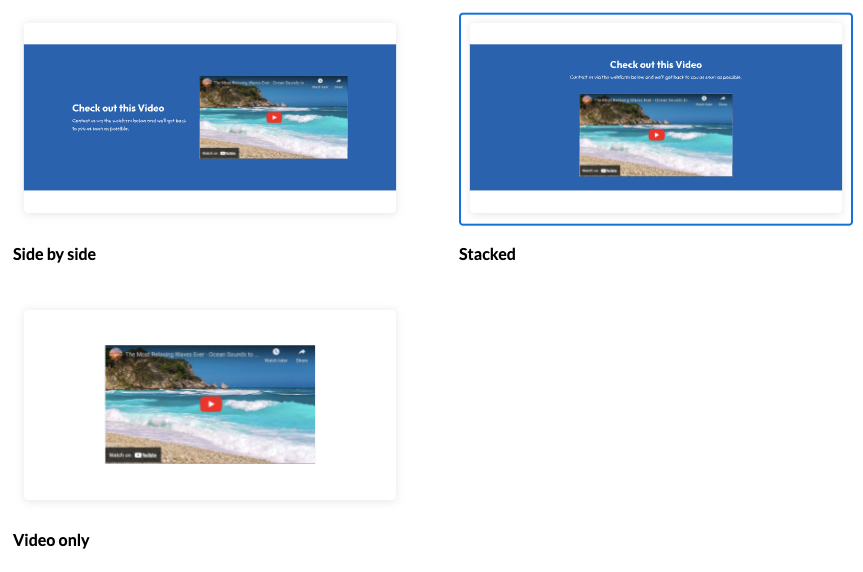
Add a YouTube or Vimeo Embed to a Page
-
Go to your Amplify page where you want to add the section.
-
Click any blue + icon where you want to add a Designer Section.
-
Select YouTube or Vimeo Embed, then click Apply.
Add a Video URL
-
In the embed section, paste the YouTube or Vimeo video URL into the video field.
-
Once the URL is added, the video preview will appear automatically.
Make sure the video is publicly accessible so it can display correctly.
Customize the Appearance
You can adjust how the embedded video appears using the Edit Section settings.
Add a Title and Subtitle
-
Enter a Title to introduce the video content.
-
Add a Subtitle to provide context or additional information.
Section Title Alignment
You can control how the title and subtitle are displayed above the video.
-
Left Aligned
-
Centered
Section Color
-
Choose a Section Color to adjust the background color behind the embedded video.
-
Select a color that provides good contrast and matches your site branding.
Add Padding
-
Enable Add Padding to add space around the video.
-
Padding helps improve readability and separation from surrounding content.
Save and Preview
When you’re finished configuring the YouTube or Vimeo Embed section, click Save to publish and preview it on your page.
The embedded video will now play directly on your site.
Step-by-Step Walkthrough
Use the step-by-step Scribe walkthrough to follow along while adding and configuring a YouTube or Vimeo Embed in Amplify.