![streamline-logo-color-2025-1.png]](https://support.getstreamline.com/hs-fs/hubfs/chub_backup/streamline-logo-color-2025-1.png?height=32&name=streamline-logo-color-2025-1.png)
Last updated: December 2025
Quicklinks Overview
The Quicklinks Designer Section lets you highlight important pages, tools, or resources in a simple, easy-to-scan layout. Quicklinks are ideal for directing visitors to frequently used or high-priority content.
Streamline recommends up to 4-7 quick links in any of the sections.
This article walks through how to add a Quicklinks section, choose a layout, and configure the links that appear.
Add a Quicklinks Section to a Page
-
Go to your Amplify Homepage.
-
Click any blue + icon where you want to add a Designer Section.
-
Select Quicklinks, then click Apply.
Choose a Layout
Quicklinks include multiple layout options so you can control how the links appear on your page.
-
Click Change Layout.
-
Choose one of the available layout styles, such as:
-
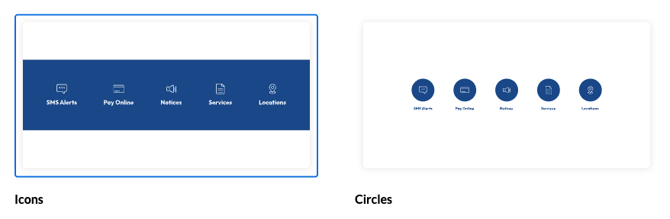
Icons – displays links as icons in a horizontal bar.
-
Circles – displays links as circular icons for a more visual style.
-
-
Click Apply to save your layout selection.
You can switch layouts at any time to see which option works best for your content.
Add Links to the Quicklinks Section
-
Click the white + icon within the Quicklinks section.
-
Select the page you want to link to.
-
Click Save.
Repeat these steps to add multiple links to the section.
Edit or Remove Quicklinks
-
Hover over the Quicklinks section and click Edit Section.
-
To remove a link, select the link and delete it.
-
To change a link, select a different page and save your changes.
Optional: Customize the Section
Depending on your setup, you may have options to adjust how the Quicklinks section appears, such as layout, spacing, or styling. Use the available settings to preview changes as you make them.
Save and Preview
When you’re finished adding and organizing your Quicklinks, click Save to publish and preview the section on your page.
Quicklinks help visitors find important information quickly, improving navigation and overall usability.
Step-by-Step Walkthroughs
Use the step-by-step Scribe walkthrough to follow along while adding Quicklinks to Amplify.
Use the step-by-step Scribe walkthrough to follow along while adding and managing a Quicklinks section in Amplify.