![streamline-logo-color-2025-1.png]](https://support.getstreamline.com/hs-fs/hubfs/chub_backup/streamline-logo-color-2025-1.png?height=32&name=streamline-logo-color-2025-1.png)
Last updated: December 2025
Page Preview Carousel Overview
Page Preview Carousels (sometimes called an Image Carousel) let you feature multiple pages in a rotating carousel format. You can choose from several layout styles and customize overlay or wave colors to match your site’s look and feel.
Streamline recommends up to 3-5 items in the carousel.
This article walks through how to add a Page Preview Carousel, select a layout, add items to the carousel, and customize appearance settings.
Add a Page Preview Carousel to a Page
-
Go to the Amplify page where you want to add the carousel.
-
Click any blue + icon where you want to insert a Designer Section.
-
Select Page Preview Carousel, then click Apply.
Choose a Layout
- Click Edit Section, then select Change Layout.
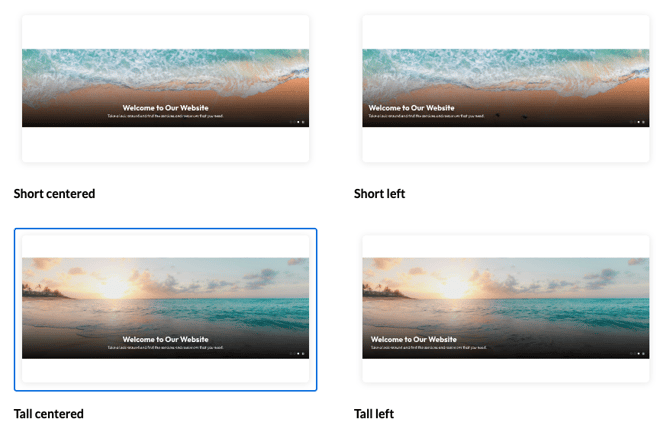
- Choose one of the layout styles below, then click Apply.
Available Layouts
- Short Centered
Displays shorter preview cards with centered content. - Short Left
Displays shorter preview cards with left-aligned content. - Tall Centered
Uses taller preview cards with centered content for a more prominent look. - Tall Left
Uses taller preview cards with left-aligned content.
Add Items to Your Carousel
-
After the section is added, click the white + icon in the center or edge of the carousel.
-
A menu will open showing available pages on your site.
-
Select the page(s) you want to include in the carousel.
-
Click Save to add them to the carousel.
Repeat this process to add additional items.
Tips for Adding Items
-
You can add as many pages as needed; arrows will appear once there are multiple items.
-
Pages are shown in the order they’re added, but you can reorder them by editing the carousel or re-adding items in the desired sequence.
Edit or Remove Carousel Items
-
Hover over the carousel section and click Edit Section.
-
To remove an item, select it and delete it from the carousel.
-
To replace an item, select it, choose a new page, then save.
You can always update carousel content to keep it current with your site messaging.
Once published, visitors can use the carousel arrows to move left and right through the pages you added.Customizing Colors
You can also adjust the look of your carousel by updating:
-
Overlay color (helps improve contrast and readability)
-
Wave color (if your selected layout includes a wave at the top or bottom)
These color settings are located toward the bottom of the Page Preview Carousel settings.
Recommended image sizes
- Image banners: 1800x500 - 2000x800
- It can be taller vertically, but it will take up more space on the screen.
Save and Preview
When you’re finished configuring the Page Preview Carousel, click Save to publish and preview it on your page.
Step-by-Step Walkthrough
Use the step-by-step Scribe walkthrough to follow along while adding items to Page Preview Carousels in Amplify.
Use the step-by-step Scribe walkthrough to follow along while adding and configuring Page Preview Carousels in Amplify.