![streamline-logo-color-2025-1.png]](https://support.getstreamline.com/hs-fs/hubfs/chub_backup/streamline-logo-color-2025-1.png?height=32&name=streamline-logo-color-2025-1.png)
Last updated: January 2026
Notification Banner Overview
The Notification Banner Section allows you to display an important message at the top of your Amplify page. This section is ideal for alerts, announcements, reminders, or anything you want visitors to see immediately when they arrive.
This article walks through how to add a Notification Banner, customize its content, and control how it appears on your site.
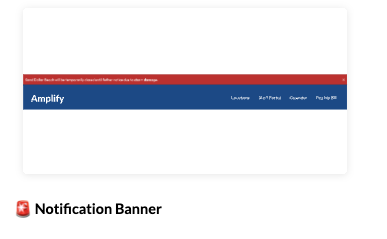
Add a Notification Banner to a Page
-
Go to your Amplify page where you want the banner to appear.
-
Click any blue + icon where you want to add a Designer Section.
-
Select Notification Banner, then click Apply.
Enter Your Notification Message
Once the Notification Banner section is added:
-
Click inside the banner title area.
-
Type the title you want visitors to see.
-
Click inside the subtitle area.
- Type the message you want visitors to see.
Customize the Appearance
You can visually tailor the Notification Banner using the Edit Section settings.
Section Color
-
Choose a Section Color to control the background color of the banner.
-
Use colors that provide good contrast with the text so the message is easy to read.
Color choice can help convey urgency (e.g., red for alerts) or match branding.
Save and Preview
When you’re finished configuring your Notification Banner:
-
Click Save to publish the section.
-
Preview the page to see how the banner appears and behaves.
The banner will now show the message you entered according to the settings you selected.
Step-by-Step Walkthrough
Use the step-by-step Scribe walkthrough to follow along while adding and configuring a Notification Banner in Amplify.