![streamline-logo-color-2025-1.png]](https://support.getstreamline.com/hs-fs/hubfs/chub_backup/streamline-logo-color-2025-1.png?height=32&name=streamline-logo-color-2025-1.png)
Last updated: December 2025
Meetings Overview
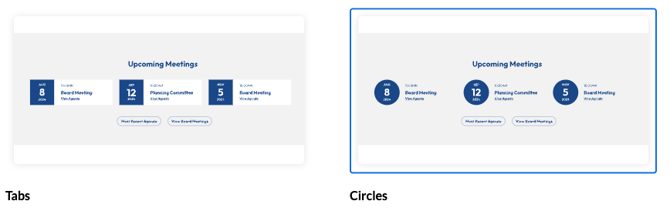
The Meetings Designer Section allows you to display upcoming meetings directly on your Amplify homepage. This section helps keep visitors informed by showing meeting details in a clear, organized format.
Your meetings will automatically feed to this section from your meetings dashboard.
This article walks through how to add the Meetings section and configure it for your homepage.
Add the Meetings Section to a Page
-
Go to your Amplify Homepage.
-
Click any blue + icon where you want to add a Designer Section.
-
Select Meetings, then click Apply.
Configure the Meetings Section
Once the Meetings section is added, you can adjust which meetings are displayed.
-
Select the meeting type you want to show.
-
Choose how many upcoming meetings should appear.
-
Review the meeting information that will be displayed, such as date, time, and title.
The Meetings section automatically pulls in meeting data based on your selections.
Optional: Adjust Section Settings
Depending on your setup, you may have additional options to control how the Meetings section appears, such as spacing or placement on the page. Use the available settings to preview changes as you make them.
Save and Preview
When you’re finished configuring the Meetings section, click Save to publish and preview it on your homepage.
The Meetings section will now display upcoming meetings to visitors, helping them stay informed and engaged.
Step-by-Step Walkthrough
Use the step-by-step Scribe walkthrough to follow along while adding and configuring the Meetings section in Amplify.