![streamline-logo-color-2025-1.png]](https://support.getstreamline.com/hs-fs/hubfs/chub_backup/streamline-logo-color-2025-1.png?height=32&name=streamline-logo-color-2025-1.png)
Last updated: December 2025
HTML Embed Overview
The HTML Embed Designer Section allows you to add custom HTML content directly to your Amplify page. This is useful for embedding third party tools, widgets, maps, forms, or other external content that requires HTML code.
This article walks through how to add an HTML Embed section, customize its appearance, and understand accessibility considerations.
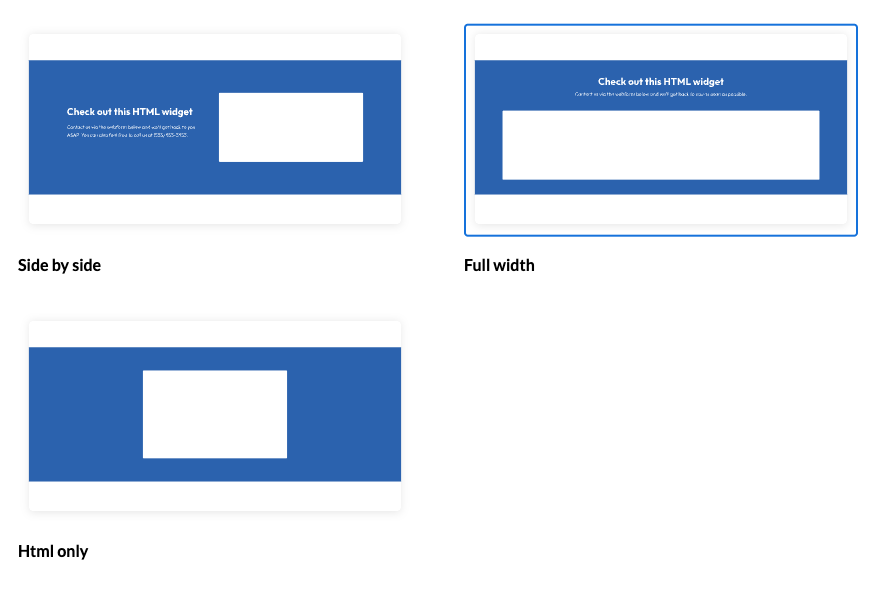
Add an HTML Embed to a Page
-
Go to your Amplify page where you want to add the section.
-
Click any blue + icon where you want to add a Designer Section.
-
Select HTML Embed, then click Apply.
Add HTML Code
-
Paste your HTML code into the HTML field within the section.
-
Review the preview to confirm the embedded content displays correctly.
Only valid HTML will render within the section.
Customize the Appearance
You can adjust how the HTML Embed section appears using the Edit Section settings.
Add a Title and Subtitle
-
Enter a Title to describe the embedded content.
-
Add a Subtitle to provide additional context or instructions for users.
Section Title Alignment
Control how the title and subtitle appear above the embedded content.
-
Left Aligned
-
Centered
Section Color
-
Choose a Section Color to set the background color behind the embedded content.
-
Select a color that provides sufficient contrast and aligns with your site branding.
Add Padding
-
Enable Add Padding to add spacing around the embedded content.
-
Padding helps improve readability and visual separation from other sections on the page.
Accessibility Considerations
While efforts can be made to enhance the accessibility of your embedded content, Streamline cannot guarantee that embedded content is accessible.
We strongly encourage users to:
-
Contact the embedded content owners or providers to prioritize accessibility.
-
Offer alternative formats or accessible versions of the content when available.
For additional guidance, see:
Embedded Content and Accessibility
https://support.getstreamline.com/embedded-content
Save and Preview
When you’re finished configuring the HTML Embed section, click Save to publish and preview it on your page.
The embedded content will now display directly within your Amplify site.
Step by Step Walkthrough
Use the step by step Scribe walkthrough to follow along while adding and configuring an HTML Embed section in Amplify.