![streamline-logo-color-2025-1.png]](https://support.getstreamline.com/hs-fs/hubfs/chub_backup/streamline-logo-color-2025-1.png?height=32&name=streamline-logo-color-2025-1.png)
Last updated: December 2025
Freeform Overview
The Freeform Designer Section allows you to add flexible, custom content to your Amplify page using a rich text editor. This section is ideal for adding formatted text, links, images, tables, and other custom content that doesn’t fit into a structured layout.
This article walks through how to add a Freeform section and customize both the content and appearance.
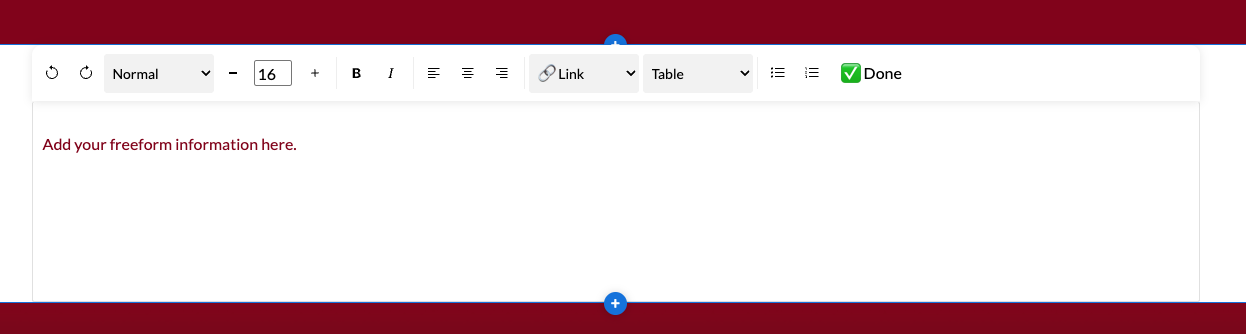
Add a Freeform Section to a Page
-
Go to your Amplify page where you want to add the section.
-
Click any blue + icon where you want to add a Designer Section.
-
Select Freeform, then click Apply.
Add Freeform Content
Once the section is added, you can enter and format content directly within the editor.
Rich Text Editor Tools
The Freeform editor supports common formatting and content options, including:
-
Text styles and font size adjustments
-
Bold, italic, and alignment options
-
Bulleted and numbered lists
-
Links to:
-
External websites
-
Pages on your site
-
Files
-
-
Inserting:
-
Images
-
Tables
-
Click Done when you’re finished editing content.
Customize the Freeform Section
You can adjust how the Freeform section appears using the Customize Your Freeform Section settings.
Display as Accordion
You can enable Display as Accordion to collapse the Freeform content into an expandable section.
-
Enter an Accordion Title to label the section.
-
Choose an Accordion Color.
-
Visitors can click the accordion title to expand or collapse the content.
This option is helpful for organizing longer content or saving space on the page.
Section Color
-
Choose a Section Color to set the background color behind the Freeform content.
-
Select a color that provides good contrast with your text.
Add Padding
-
Enable Add Padding to add space around the Freeform content.
-
Padding is recommended when applying a background color to improve readability.
Make Paragraph Text High Contrast
-
Enable Make Paragraph Text High Contrast (black/white) to improve readability.
-
This setting automatically adjusts paragraph text for better contrast against the selected background color.
Save and Preview
When you’re finished adding content and configuring the Freeform section, click Save to publish and preview it on your page.
Freeform sections are a powerful way to add flexible, customized content wherever it’s needed on your site.
Step-by-Step Walkthrough
Use the step-by-step Scribe walkthrough to follow along while adding and configuring a Freeform section in Amplify.