![streamline-logo-color-2025-1.png]](https://support.getstreamline.com/hs-fs/hubfs/chub_backup/streamline-logo-color-2025-1.png?height=32&name=streamline-logo-color-2025-1.png)
Last updated: December 2025
Changing Colors Overview
Amplify allows you to update the color of any Designer Section using preset brand colors. These colors help maintain consistency across your site while ensuring accessibility standards are met.
This article walks through how to change section colors and what to know if you need to update your available color options.
Change the Color of a Designer Section
You can change the color of any Designer Section directly from the page editor.
-
Navigate to the Amplify page containing the section you want to update.
-
Hover over the section and click the blue Edit Section button in the top left.
-
Click Edit Section again (the pencil icon).
-
A settings panel will appear.
-
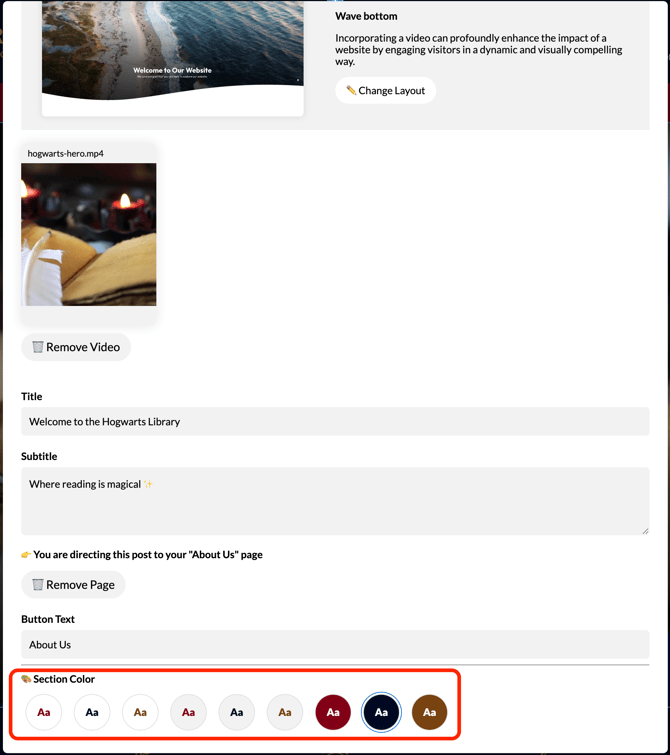
Scroll to the bottom of the panel to find Section Color.
-
Select the color you want to apply.
The section will update immediately in the preview.
About Section Colors
-
Section colors are pulled from your site’s predefined color palette.
-
These colors are applied consistently across Designer Sections to maintain visual cohesion.
-
The same color options appear across most section types, such as banners, cards, forms, and freeform content.
Updating Your Available Colors
If you want to change any of the preset colors that Streamline has identified as your primary colors, please contact Streamline Support.
Important Notes About Color Changes
-
Amplify supports up to three primary colors.
-
If you want to add a new color, you will need to let us know which existing color(s) should be replaced.
-
All colors on your site must meet WCAG AA accessibility standards.
-
WCAG AAA compliance is recommended for the best accessibility experience.
-
In general, darker colors provide better contrast and readability.
Our team will help ensure your updated colors remain accessible and consistent across your site.
Save and Preview
After selecting a new section color, click Save to publish your changes and preview how the updated color appears on your page.